Executions
Overview of workflow executions
After the login you are in the tab Executions. An execution describes the concrete processing of a Submission Information Package (SIP) by means of a specific workflow.
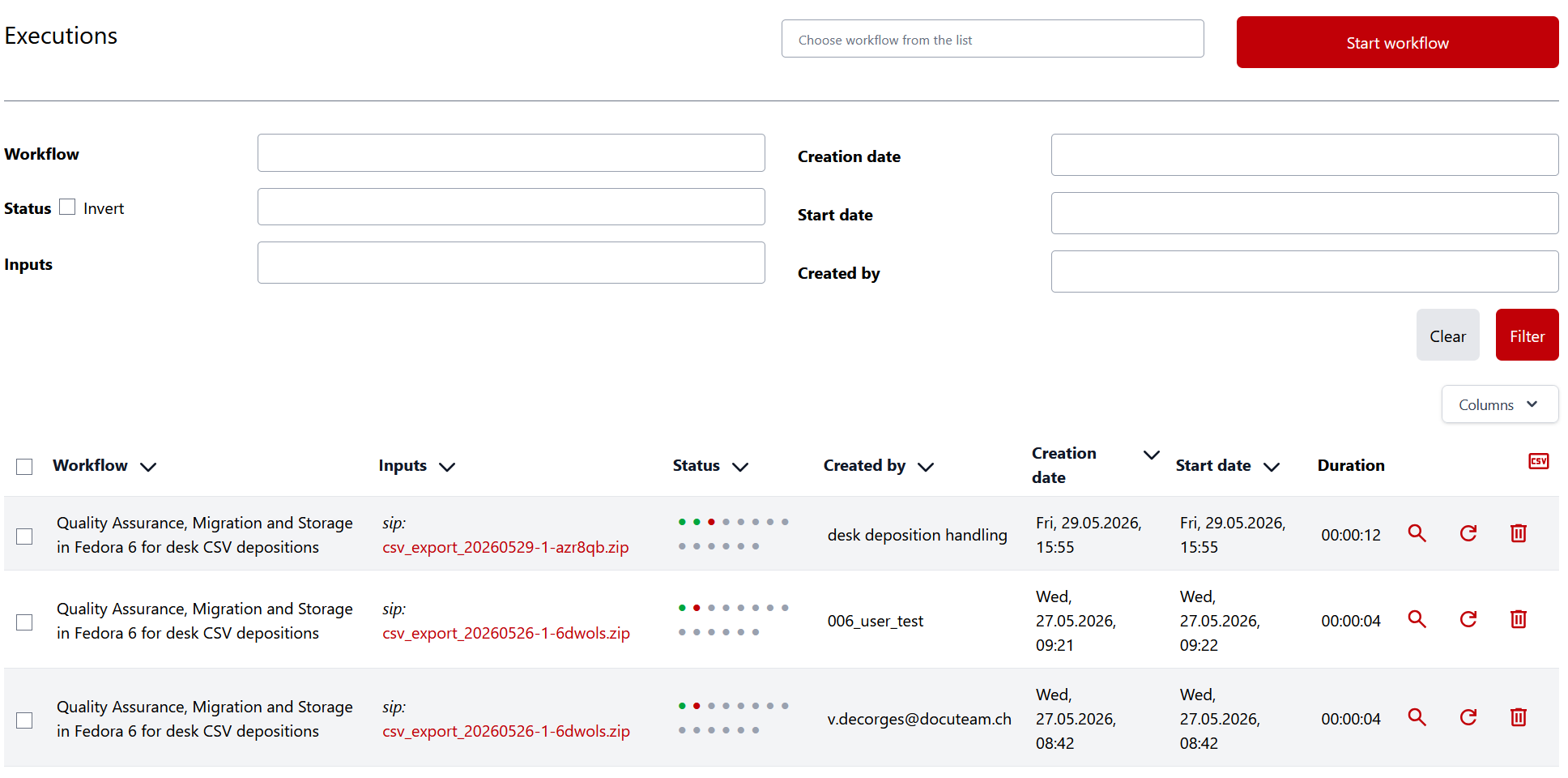
All SIPs are listed,
- that are being processed
- whose processing is completed
- whose processing was terminated due to an error.
The list consists of several columns that contain information on processing:

The list refreshes automatically via WebSockets, but only when no filters are applied.
| Example | Description |
|---|---|
291 | ID: unique processing number |
Quality Assurance, Migration and Storage | Name of the workflow that processes the SIP. |
sip: additional_sip.zip | List of inputs and their values |
| Status | The status column shows a dot for each processing step of the relevant workflow. Its color indicates the status: brown: this step is still pending. yellow: this step is currently being executed. green: this step was completed successfully. red: this step failed. black: this step was skipped. |
| Created at | Time at which the execution was created. |
| Started at | Time at which the process was started. |
| Duration | Time elapsed since the start. |
The trashbin symbol (delete) can be used to delete this information from the database. This deletion has no influence on the result of the corresponding workflow, only the information about the corresponding execution is deleted.
You can delete or restart selected executions or all executions on the page by selecting them and clicking the restart or delete symbols in the table header.
By using the Filter button, you can filter the list of executions by workflow, status, SIP/Deposition, creation date and execution start date.
Most columns can be used to sort the workflow executions.
Starting a new execution
A new execution can be triggered at the top of the screen by selecting a workflow and clicking Start workflow.
A workflow is started by clicking on the arrow symbol (start). Depending on the configuration of the workflow, none, one or more inputs are required for execution. If the workflow requires an input of the type file or folder, this can be selected in various ways:
- Dropdown list for SIP which are stored in the folder defined as Inbox folder for packages.
- Dropdown list for SIP which were uploaded as depositions.
- Manual entry of a SIP name (if feature
manual_inputis activated).
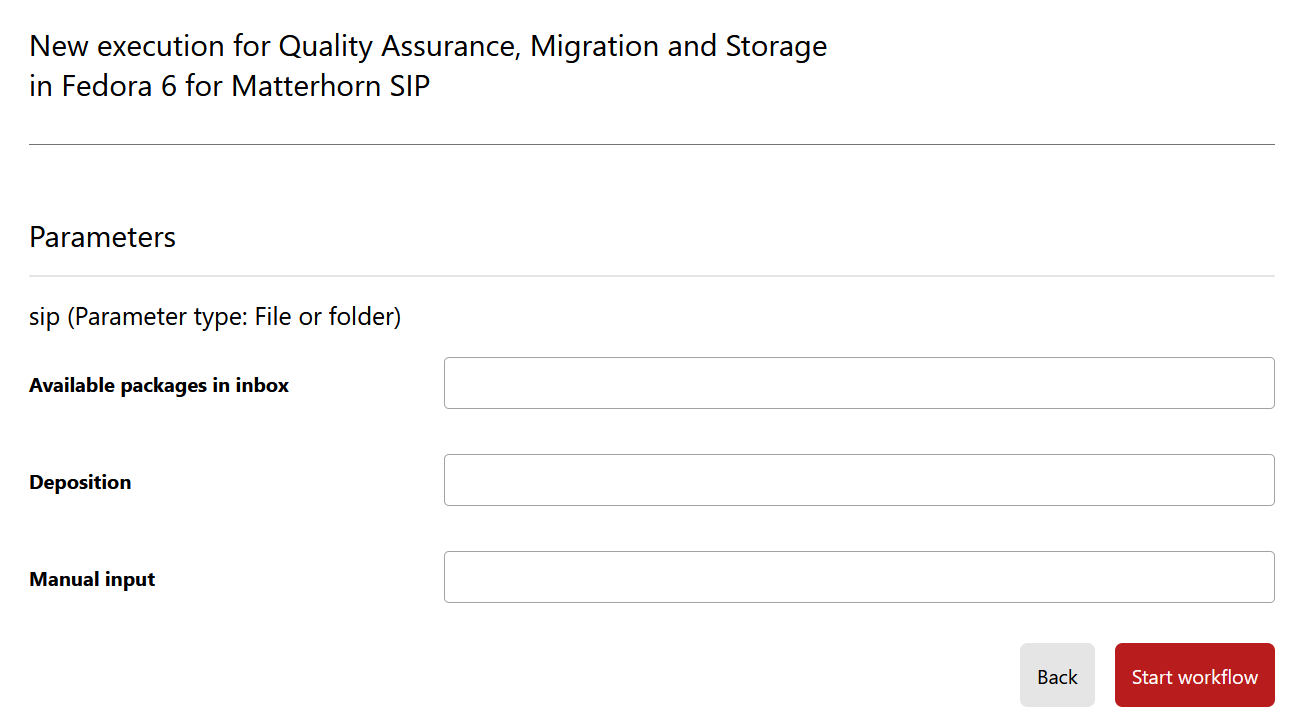
The dropdown for SIPs is populated from the inbox folder for packages specified for the respective workflow.
Exporting executions
You can export the complete list of executions by clicking the CSV button in the table header. Alternatively, you can export a specific subset by selecting the desired executions before clicking the button.
Details of an execution
The magnifying glass symbol (show) takes you to a detail view of a specific execution.
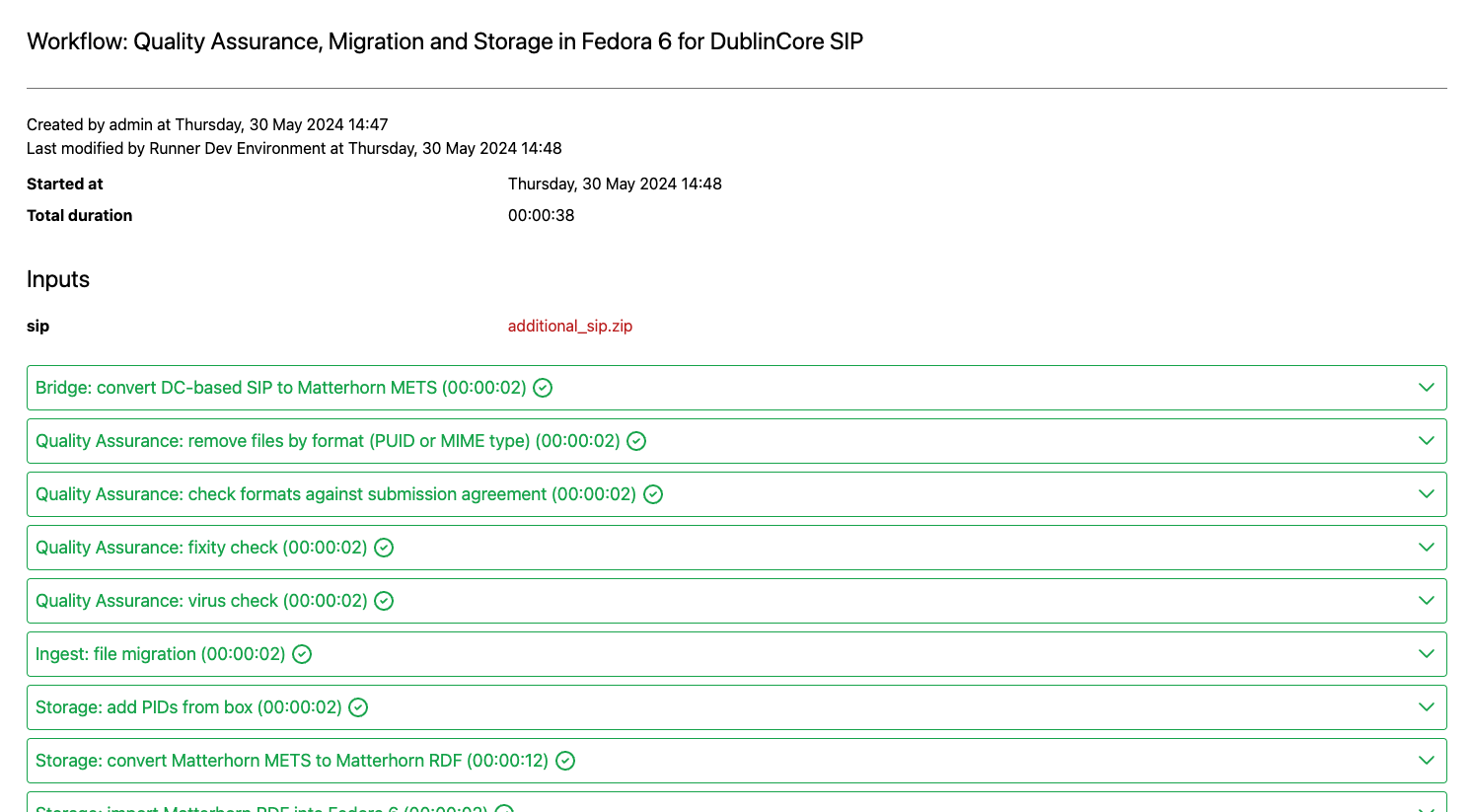
The detail view provides information on the status of the individual steps that together form a workflow. If a step has been successfully completed, it is marked in green and the next step is started. If a step fails, this is displayed in red.
Failed steps can be restarted (feeder then tries to execute the failed step again) or ignored (feeder then continues with the next step). When ignoring steps, please note that this can lead to problems with subsequent steps if these are dependent on the skipped step.
A running workflow execution can be stopped. A stop signal is sent and the step is displayed as stopped after the signal has been executed. Stopped steps can be restarted or ignored in the same way as failed steps. If the step is already complete when the stop signal is processed, it is displayed in green and the workflow stops before the next step is executed.
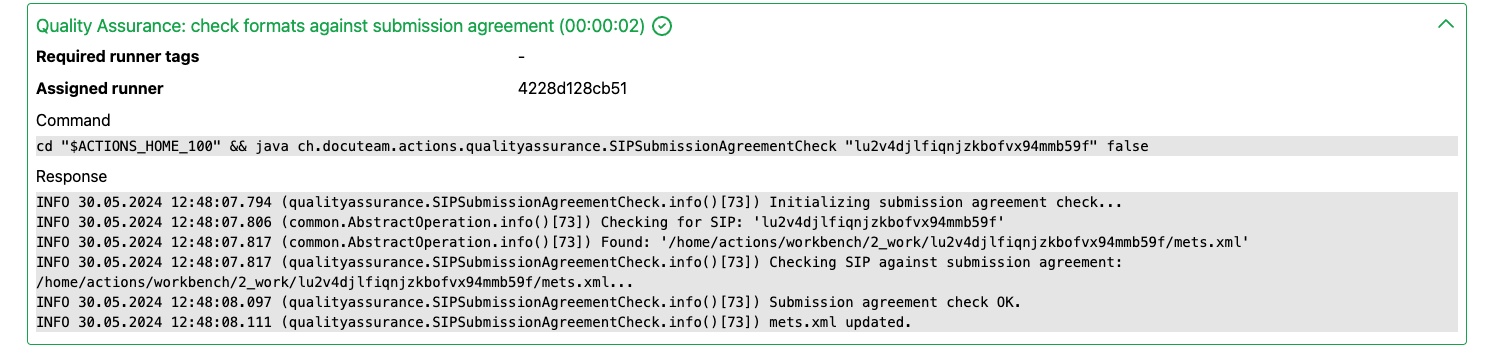
Depending on the log level set, more or less information is displayed for the individual workflow steps. By clicking on the downward arrow (displayed on the right of each step), this information can be displayed or hidden.
In addition to the log informations, system administrators see the feeder runner who executed the step.
You can navigate through the executions based on the previously selected filter and sorting option in the execution list using the Previous and Next buttons, up to a limit of 50 records in either direction. Note that this history is session-specific; if you open multiple execution detail views simultaneously, the navigation buttons will only function on the most recently opened view.