Search Functions
There are two tabs available for searching the archive: Search (Suche) and Advanced Search (Erweiterte Suche). The Search tab searches a few fields by default, while the Advanced Search tab can be fully customized.
Suche
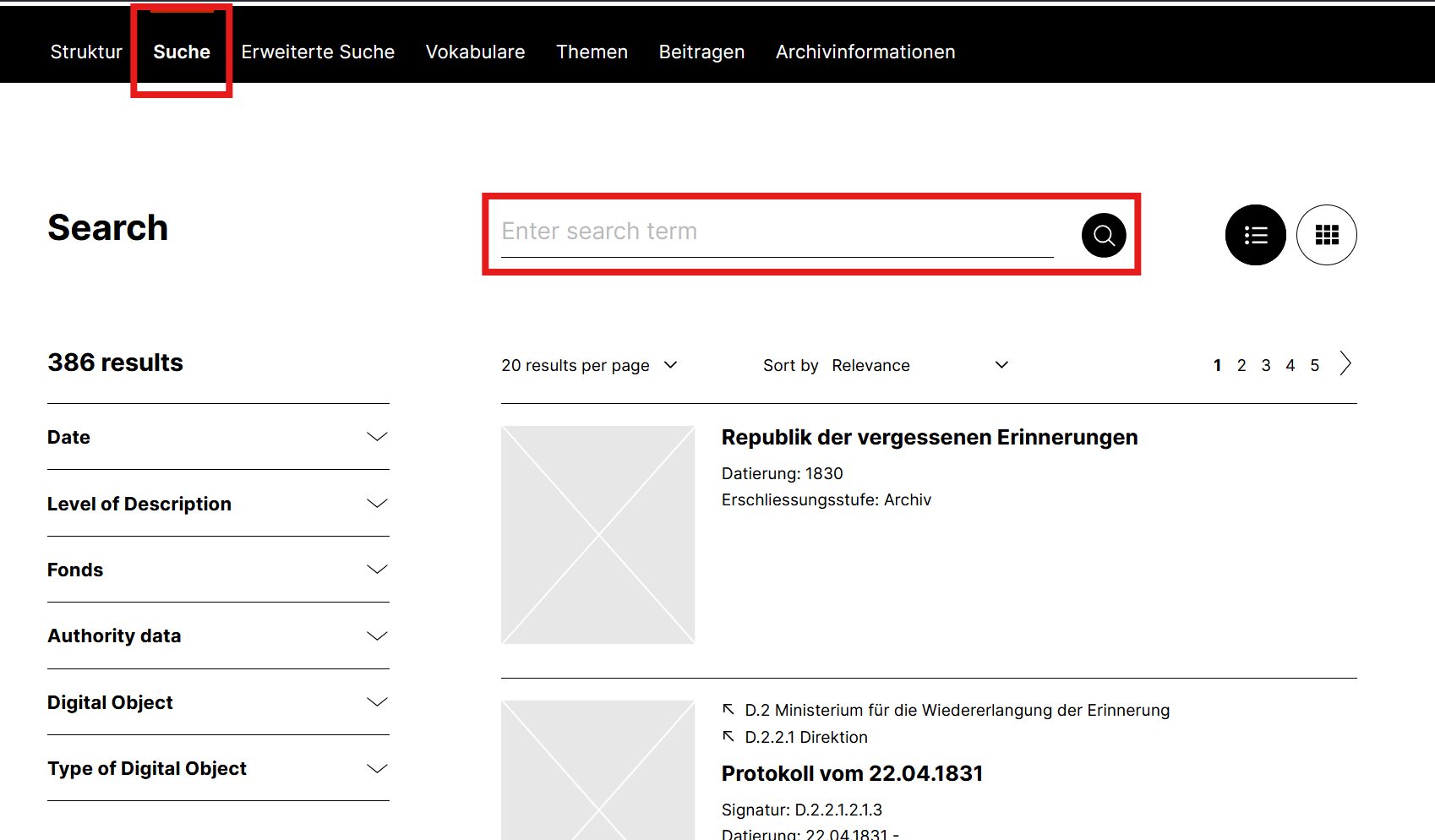
The simple search currently searches the following fields:
- Title
- Reference Code
- Persistent Identifier (PID)
- Extent
- Scope and Content
- Date
- Archival History
In addition to exact search terms, such as cargo, you can also use placeholders with the wildcard *, for example, car* or *go*.
The search term car* finds entries containing words that begin with car, such as cargo, carriage, and even car on its own.
Search terms that begin and end with a wildcard (*go*) are particularly useful when titles contain underscores or hyphens instead of spaces.
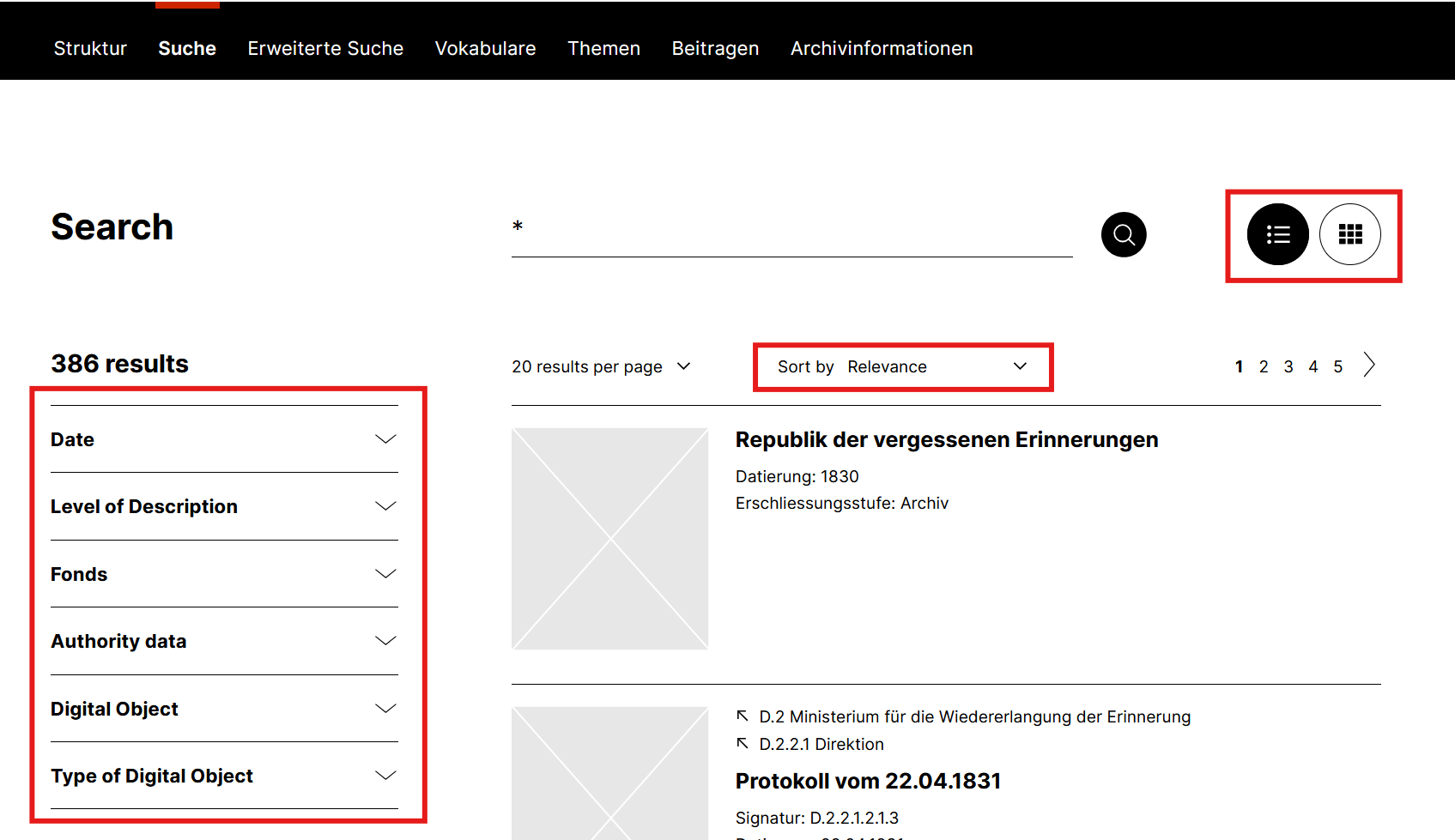
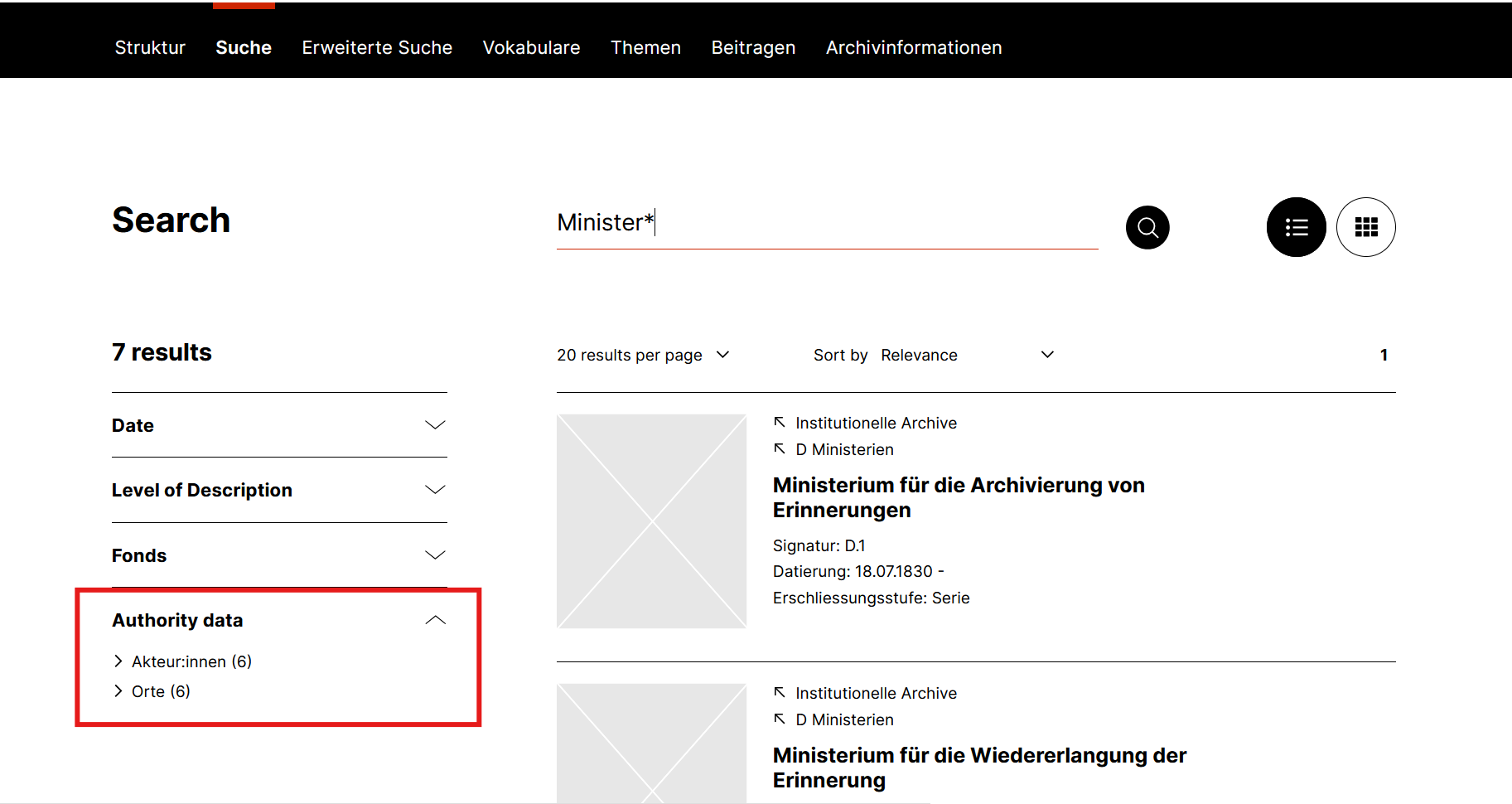
Once the search has been started by clicking the magnifying glass icon, the results appear. On the left side of the results, there are various facets that can be used to narrow down the results. In addition, the results can be sorted by relevance, title (A–Z or Z–A), and call number (A–Z or Z–A).
The results can be displayed as a list or in a tile view. In the detail view, you can scroll through the search results by clicking the arrows in the upper-right corner.
Advanced Search
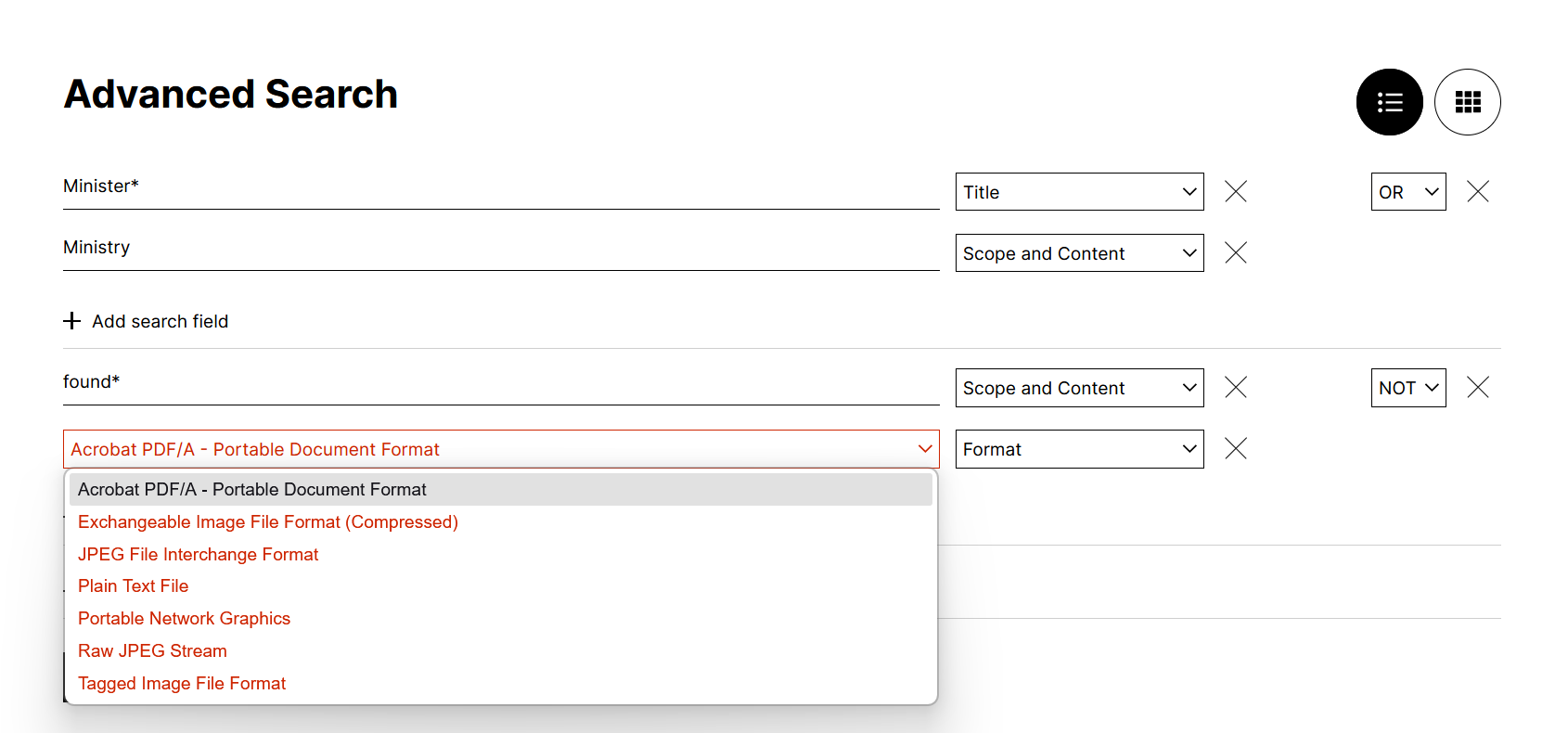
The Advanced Search provides a more complex interface. It uses search conditions and search fields: A search condition can include multiple search fields. In the dropdown menu on the right, you can select the metadata field for which a search term is entered on the left. For metadata fields with a fixed number of possible entries, a dropdown menu also appears on the left. The search fields within a search condition can, in turn, be combined using the logical operators OR, NOT, and AND.
In the example shown in the figure below, two search conditions have been created, each with two search fields.
The first search condition looks for entries with Minister* in the title or (OR) Ministry in form and content.
The second search condition excludes from the search results (NOT) those entries that contain "found*" in their form and content or are in Acrobat PDF/A format.
The search results in Advanced Search are displayed in the same way as in the basic Search; you can also narrow your search using facets.
Search and Authority Data
Authority data listed in the archive and linked to records can also be included in the search.
This can be done using the facets in the results view under Authority Data: Clicking on a displayed authority record narrows the results to linked hits.
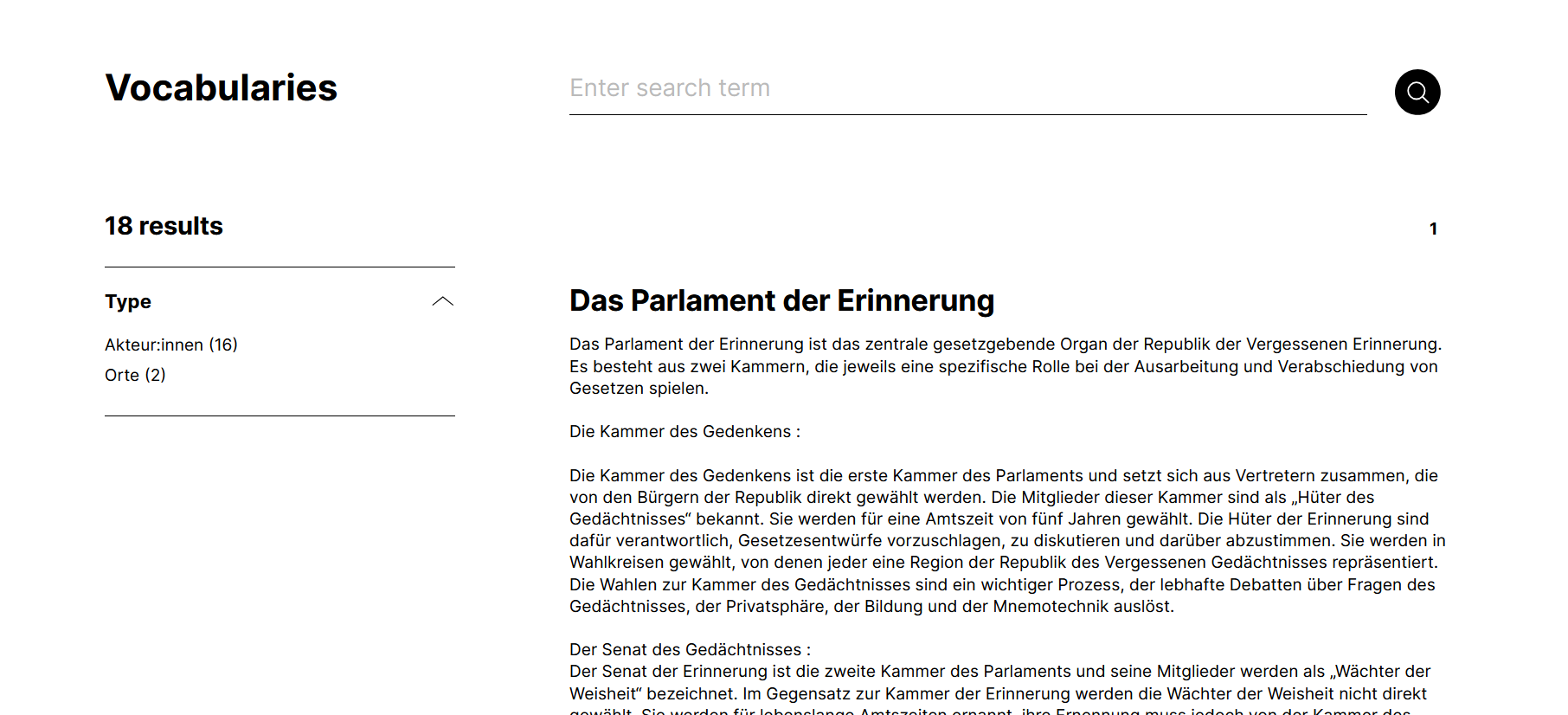
The second way to include authority data in the search is via the Vocabulary (Vokabulare) tab, where all authority data is listed. These can be searched using a specific search term in the search field or narrowed down using facets. Clicking on a specific authority record, in turn, displays all associated entries in the archive.