Customize Content
Creating New Content
Under Content > Add Content > [...] choose the appropriate content type: Archive Page (Archivseite), Article Page (Artikelseite), or Participation Page (Mitmachseite). The editing form will open, where you can enter the content.
The forms consist of the following elements:
- Title (Titel, required field) and several other fields depending on the content type, such as Mood Image or Language.
- Paragraphs (Absätze): modularly designable content for the page.
In paragraphs, which differ a bit between the different content pages, you can add text and, if necessary, media.
To do this, for example:
- Switch to the Paragraphs area
- Enter text and title directly in the respective editor
- Use the formatting toolbar to structure the text
- In the Image Paragraph, select a file. This can be chosen from the Media Library or uploaded directly.
- Enter alternative text for accessibility.
- To add another paragraph, click Add text with title and image below the already edited paragraph.
Managing Paragraphs:
- Using the three-dot menu on a paragraph, paragraphs can be deleted or duplicated.
- Use the «✥» symbol on the left to move the paragraph to the desired position.
Inserting Media and Links:
Images can be uploaded in an image paragraph or selected via Content > Media > Media Library. Images that are uploaded via the image paragraph are also automatically added to the Media Library. When doing this, attention should be paid to descriptive filenames and alternative descriptions.
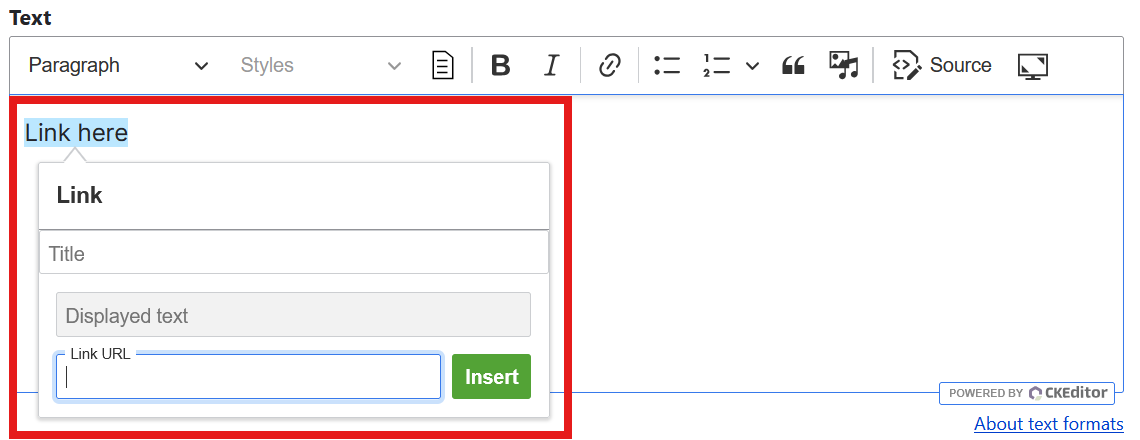
To insert links, highlight the text you wish to link. Then click on the chain icon, enter the URL and an optional title, and confirm the action.
Editing Existing Content
To edit an existing page, first click on Content in the admin bar and then click Edit on the corresponding list entry. The editing view will now open.
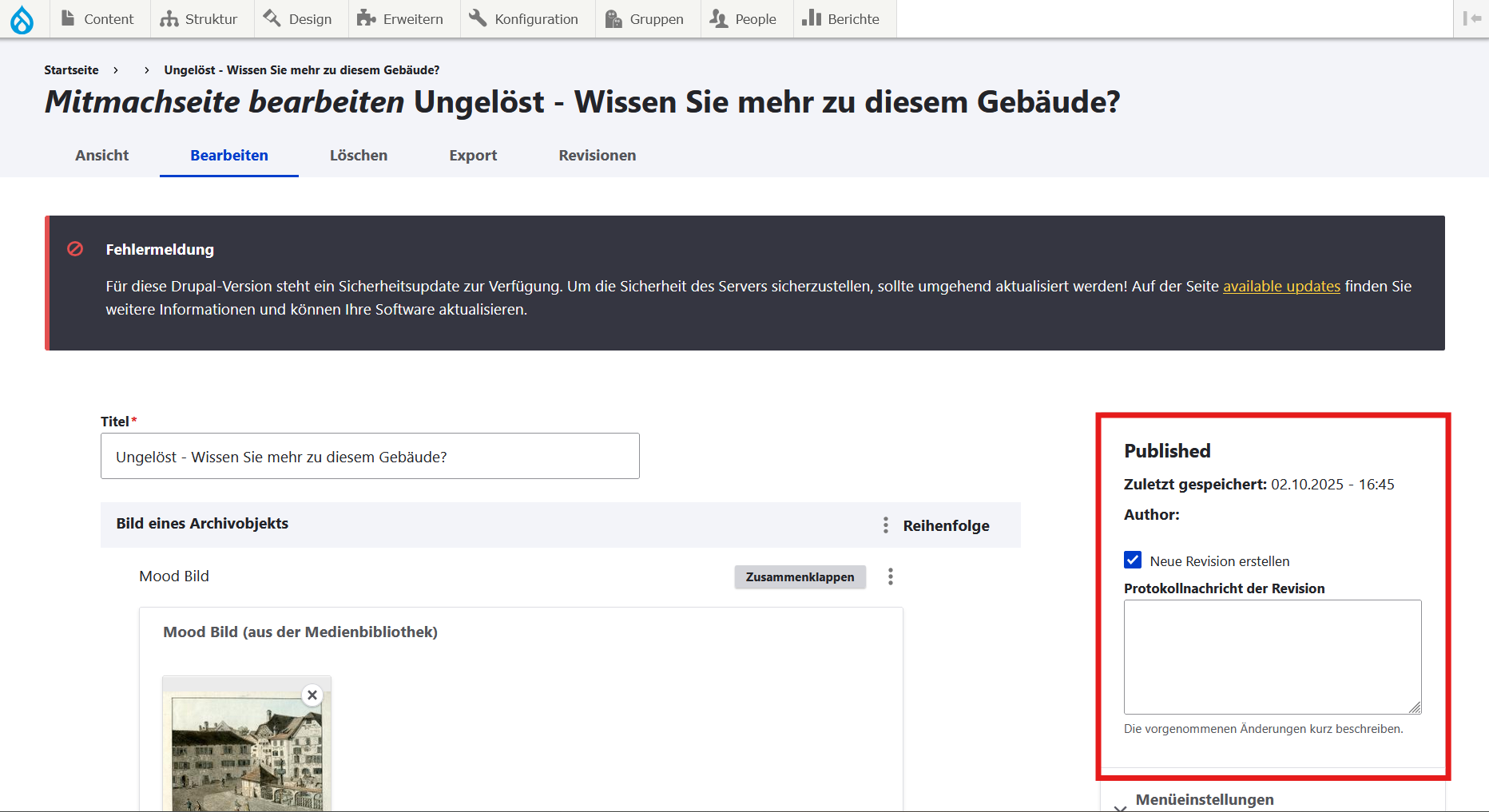
In the right sidebar, you will find the following options:
- Information regarding the last save (date and author)
- The option Create new revision is enabled by default and should be left as is.
- Under Revision log message, enter a short description of the change (optional, but recommended).
- To save changes, click Save at the bottom of the page.
Notes:
- Use the Preview button to check content before saving.
- Content can also be deactivated by unchecking the Published box.
- Changes to already published pages only take effect after saving.
Deleting Existing Content
Here is how you can delete existing content:
- Click on Content to go to the overview of existing pages.
- Select the desired Action via the dropdown menu at the bottom of the page.
- Use checkboxes to select multiple pages to which the selected Action should be applied.
- Select Apply to selected items and execute the Action.