Action: replace file
The Replace File action allows users with the <namespace>@editor_objects role to replace the file associated with an instantiation. This action is only available for instantiations that represent a file.
Select the instantiations
To replace the file for one or more instantiations, perform a search and select the items individually or use the Select All checkbox in the header. Once selected, go to the Actions menu and select Replace File to open the replacement dialog.
Tip: To replace all content within a folder, search for the folder by its PID, click Search Children in the Actions column, and then select all resulting items.

Upload the replacement files
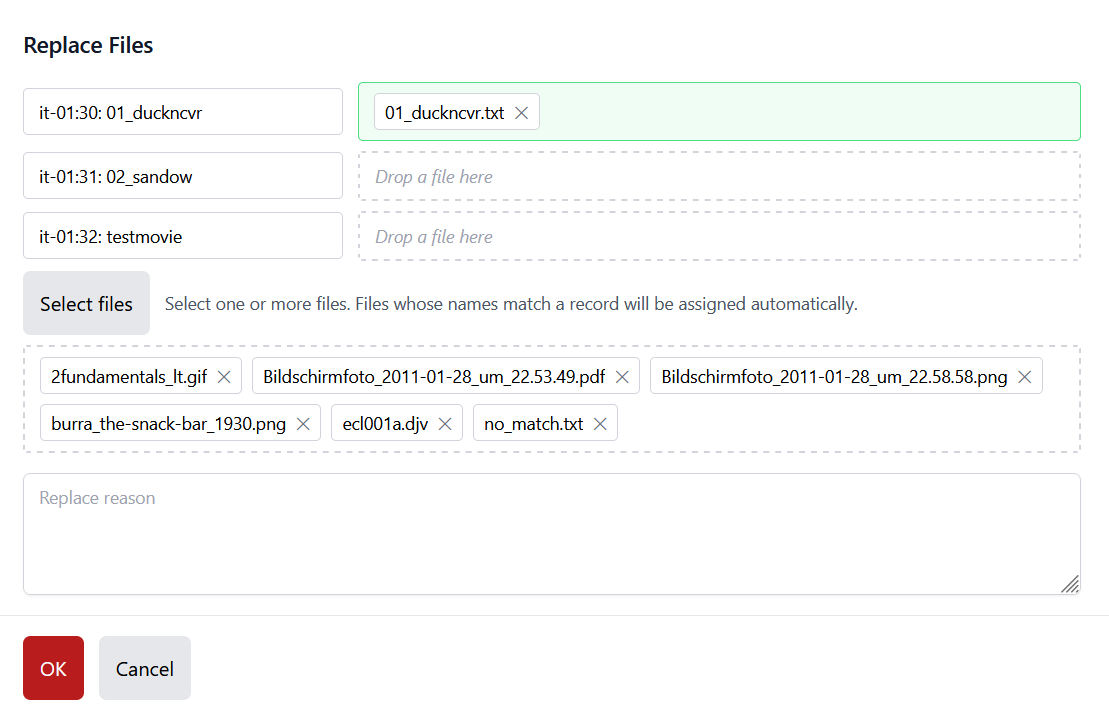
The replacement dialog displays the items you have selected. Note that only elements you have permission to modify will appear.
-
Uploading: Click
Select Filesto choose the new files from your computer. -
Auto-matching: The system will attempt to automatically associate the new files with existing entries by matching filenames.
-
Manual Assignment: Files that do not find a match are placed in the
Unassigned Zone. You can manually drag and drop these files to assign them to a specific entry. You may also reassign or unassign files at any time before proceeding.
Executing the Replacement
A reason for the replacement must be provided before the process can begin.
Once you click OK, a background task is launched, and you will be redirected to the Task Detail page. Please note:
-
Asynchronous Execution: The task runs in the background; you may need to refresh the page manually to view the latest progress.
-
Atomic Transaction: All replacements within a single task are processed as a single transaction. If one replacement fails, the entire batch will fail.
-
Metadata Updates: The process creates a new instantiation linked to the original record resource. The original PID is transferred from the old instantiation to the new one. The PUID, mime-type, size, and checksum are updated to reflect the new file.
-
Audit Trail: A PREMIS event is automatically added to the original instantiation to document the replacement, including the reason provided by the user.