Tasks
The Tasks view allows to display users and system tasks. User tasks are launched by selecting search results and applying an action on them. Note that only administrators can have access to tasks from others users. Normal users can only see their own tasks.
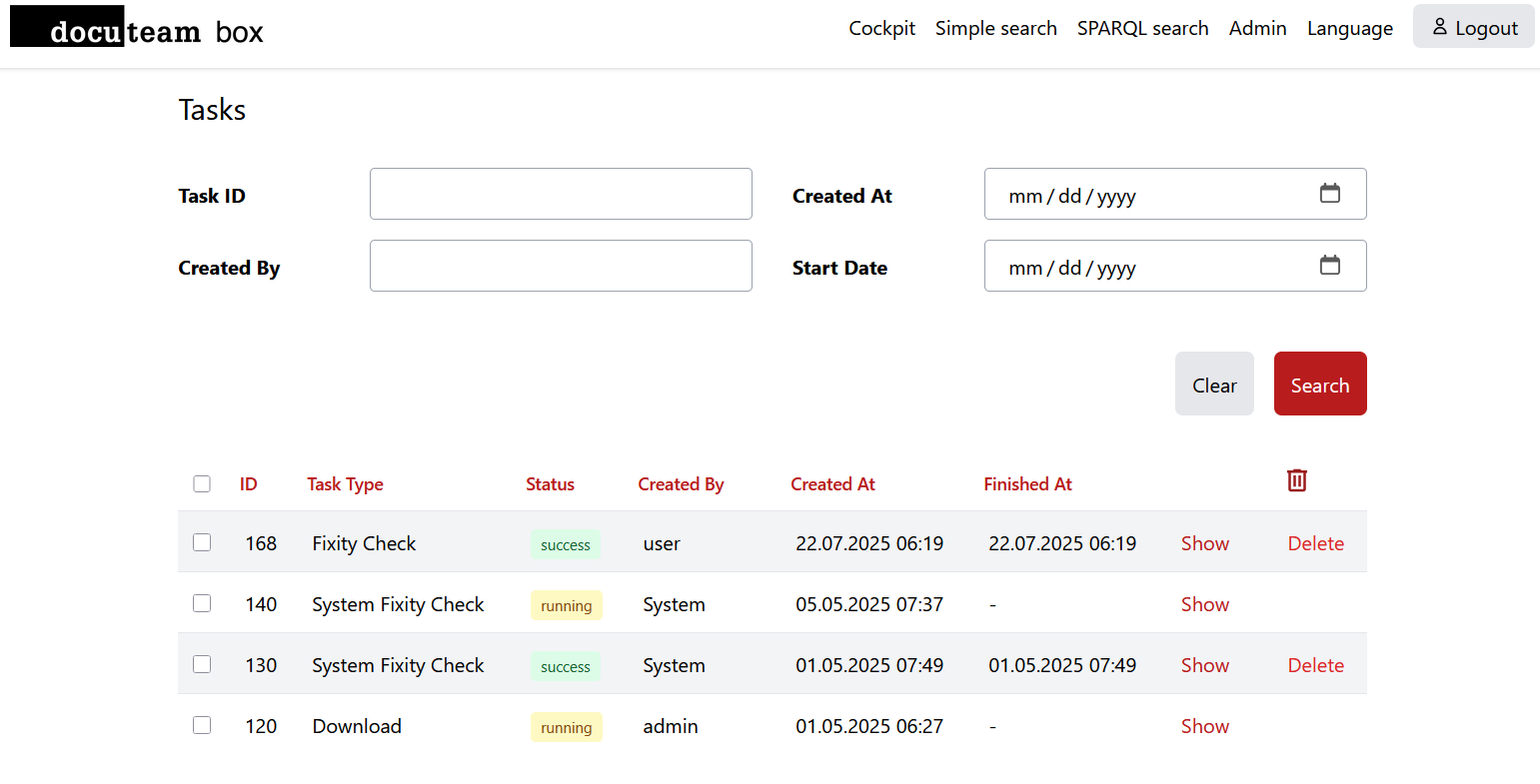
The tasks can have the following status:
| Status | |
|---|---|
pending | The task is waiting to be run. |
running | The task is currently being processed. |
failed | There was an error during the execution of the task. |
success | The task ran successfully. |
It is possible to delete old jobs that are not in state running by selecting them and hitting Delete or by using the garbage icon for a multi-selection.
You can seen the detail view of a task with the help of the Show link. The view depends on the action that was executed. Usually, we can see the instantiations that were part of the task if the action had succeeded, and the result of the action (e.g. for a fixity check the status of the check and the checksum).
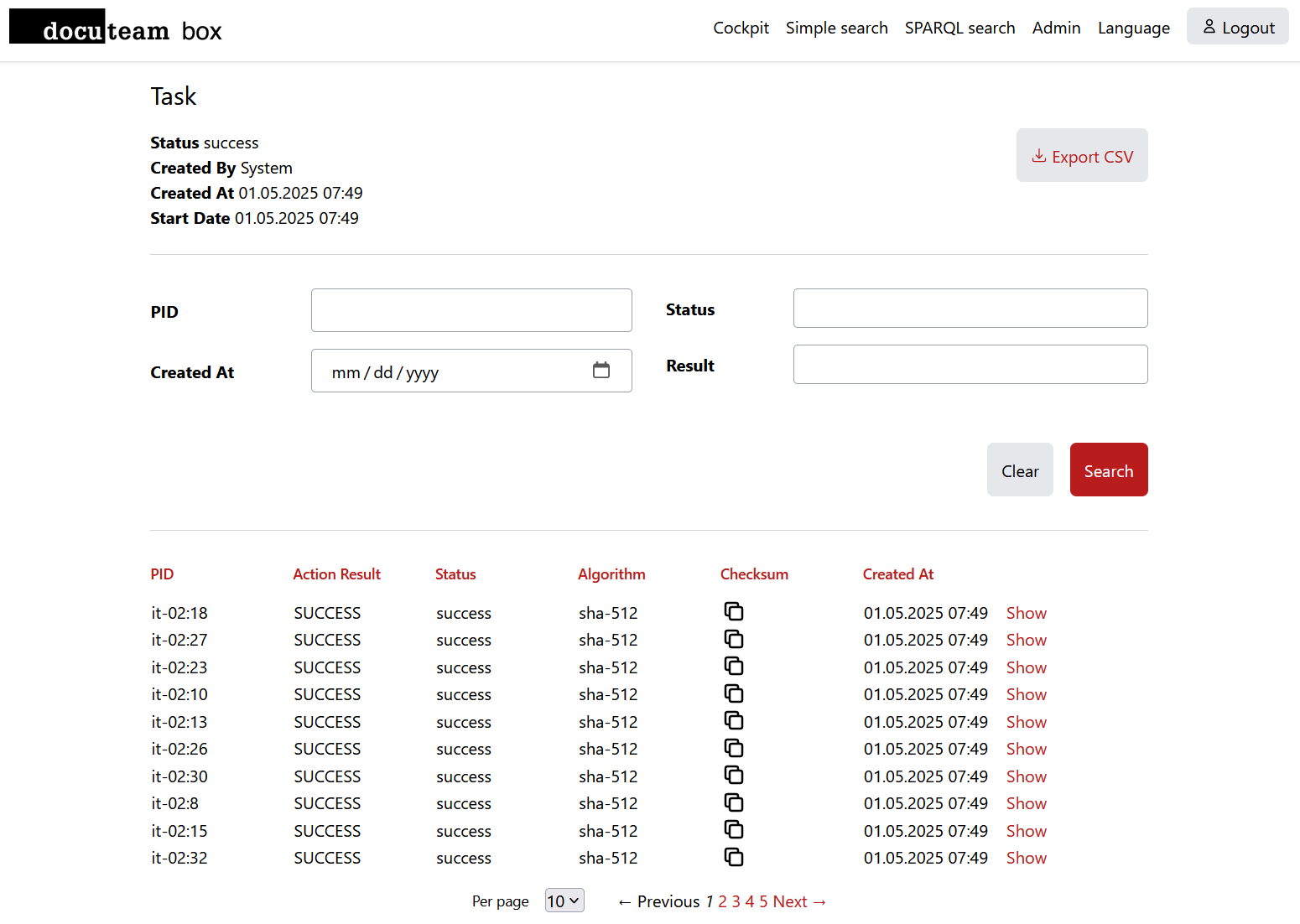
At the top right of the screen, you can usually download the product of the task (for the fixity check it is a CSV file with the results, for a download action it is a ZIP file containing the wanted objects).
A DIP task shows its steps (computing the tree structure, computing the mets.xml) and their status. The Download button becomes available once the DIP is ready.
Tasks will be automatically deleted after the configured amount of time, see here for more information.