Search
The search view enables in-depth exploration of archived data by providing full access to all stored metadata.
Functionalities
The screen is divided into two primary sections:
- The left sidebar: Used to display facets, saved searches, and search history.
- The main panel (right): Used to construct queries and view search results.
To indicate the source of a metadata element, an indicator is displayed in parenthesis. These sources correspond to the Matterhorn RDF model. The indicators are (R) for Record Resource, (I) for Instantiation and (B) for Binary.
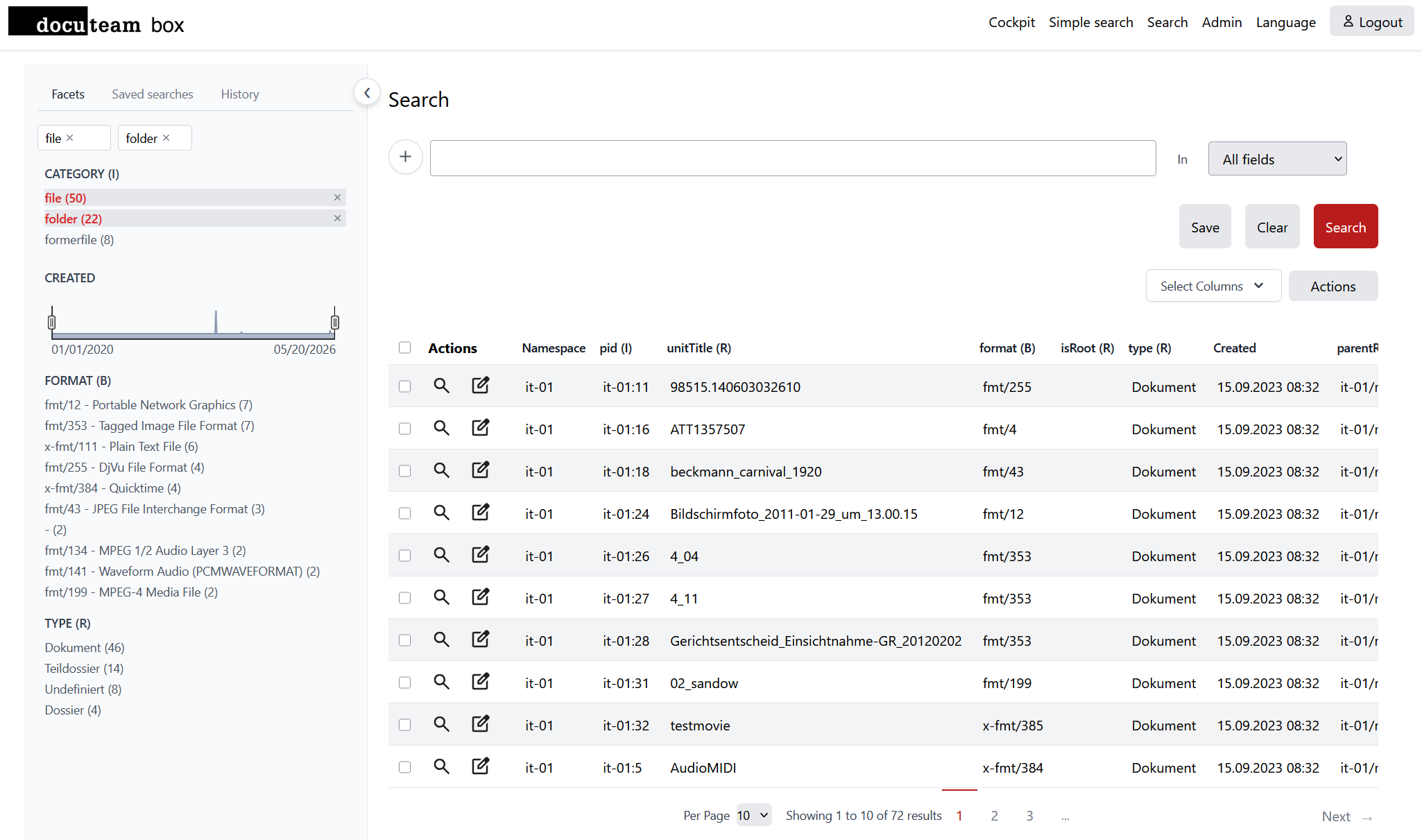
Facets
A list of facets is displayed on the left sidebar. These facets can be customized during software installation; by default, the following are available: Type (R), Category (I), Format (B), and Created.
Interaction
- Filtering: Clicking on a facet value will immediately filter the current search results. If multiple facets are selected, they are combined by using the logical OR.
- Resetting: Active facets can be removed by clicking the cross corresponding to the facet at the top of the tab.
- Dynamic Updates: Facet values and counts are updated dynamically based on the current search results.
Saved searches
Any search can be saved by clicking the Save button and providing a unique name. To recall a previous search, navigate to the Saved searches tab and click on the desired query.
When a query is saved, the system preserves the search criteria and the selected columns in the results table. Note that Facet selections are not saved as part of the query.
History
The History tab contains a record of all searches performed by the user. Any previous search can be quickly recalled simply by clicking on it in the list.
Execute searches
By default, searches are performed across all fields, including metadata, PREMIS events, and document content (when full text indexing is enabled for supported file formats).
To narrow your search, use the dropdown menu on the right to select one of the three main categories:
- Metadata Fields: Restricts the search scope to all fields within the model resources (Record Resources, Instantiations, and Binaries).
- Text Content: Searches within the actual content of documents (available only if activated and for supported file formats).
- PREMIS Content: Searches specifically within the PREMIS RDF XML data.
For more granular queries, you can select any specific field from the data model available in the list.
Multi-Criteria Searching
You can build complex queries by combining multiple criteria:
- Add criteria: Click the
+symbol on the left of the search field to add a new row. - Boolean operators: Combine rows using standard boolean operators (e.g., AND/OR and NOT). This allows you for example to search across both content and metadata fields simultaneously.
- Remove Criteria: Click the red cross on the right side of a criterion to remove it.
Access Control
Search results are namespace-aware. Users with the roles <namespace>@user or <namespace>@editor_metadata can only search for, view, and edit records belonging to the namespaces they are authorized to access.
Results
Results are displayed in the lower section of the screen.
Customizing the View
- Column selection: You can modify the displayed information by using the
Select Columnsdropdown. Note: You must re-run the search for these changes to take effect. - Pagination: The number of items per page can be adjusted in the table footer, where you can also navigate through the result pages.
The results consist of Instantiations, incorporating data from their linked Record Resources and Binaries.
Actions and Editing
Each result includes an action column with the following options:
- Detail: Opens the Detail View for the selected item.
- Edit: Opens the Edit View of the selected item. Note: Editing is only permitted for users with the
<namespace>@editor_metadatarole. If you do not have this role, the Edit link will not be visible. - Search Children: Displays all the children of the selected item (available for folders only).
Bulk Actions
You can perform actions on a single item or a selection of multiple items. Click the Actions button to view the available operations:
| Actions | Description |
|---|---|
| Fixity Check | Do a fixity check (compare checksum stored in the metadata with the current checksum) on the selected items. |
| Download Original | Create a zip file containing all the original archived files (flat structure). The files are prefixed with their PIDs. |
| Download Preview | Same as Download Original but tries to generate a preview of the original file. If it is not possible to generate a preview, the original file will be added to the output zip file instead. |
| Replace file | Replace the file of the selected instantiation(s), see replace file for more information. |
| Do file identification | Recompute the format of the selected instantiation(s), see preservation actions for more information. |
Launching an action creates a background task. You can monitor progress and download results (such as ZIP or CSV files) in the tasks view.