Edit multiple elements
Edit multiple entries in the Grid
The Grid displays multiple entities at once in a tabular view.
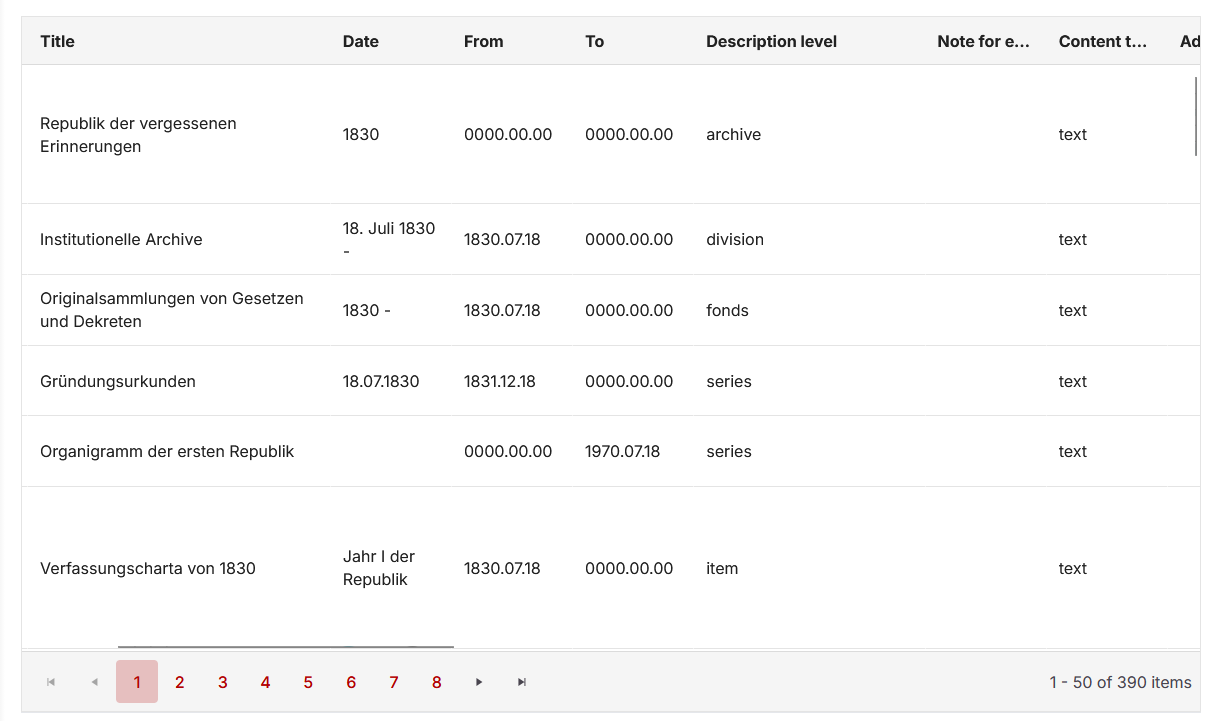
Each row contains the data of a single entity. The columns correspond to the fields used in the forms.
The Grid shows records starting with the one that is currently selected in the hierarchy. It lists that entity in the first row and all of its descendants in the rows below.
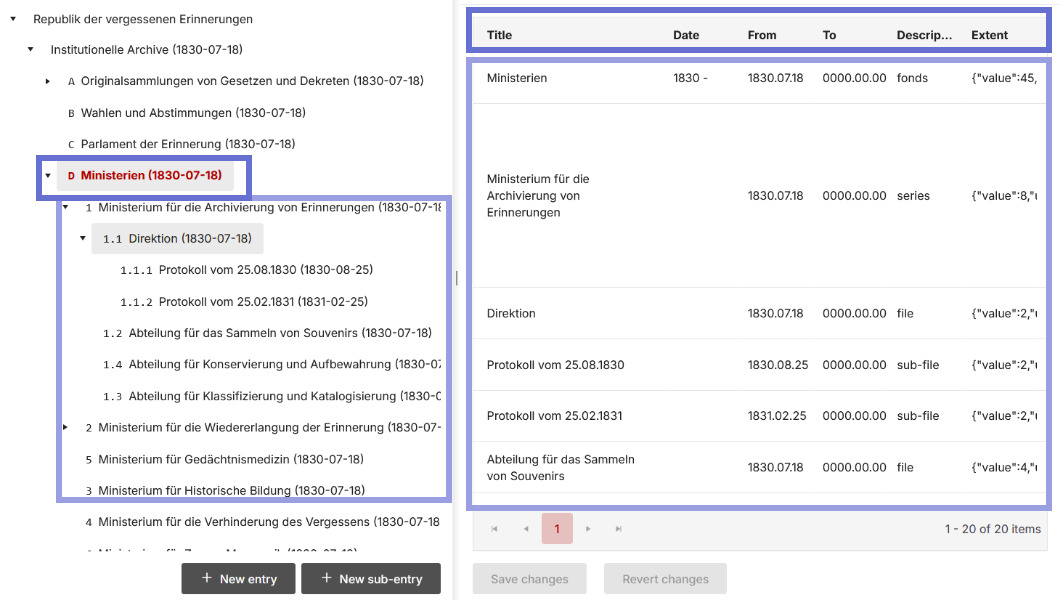
Columns are sometimes merged when docuteam context detects that a field in one column corresponds to a field in another column. This is the case when the underlying field (or property) is the same, although the label used in the forms is different.
This ensures that identical data is managed consistently, even if it originates from different forms. It also reduces the number of columns that need to be displayed.
Change a value in a cell
A click on a cell at the intersection between a row and a column reveals an input field in that cell, allowing you to change its value.
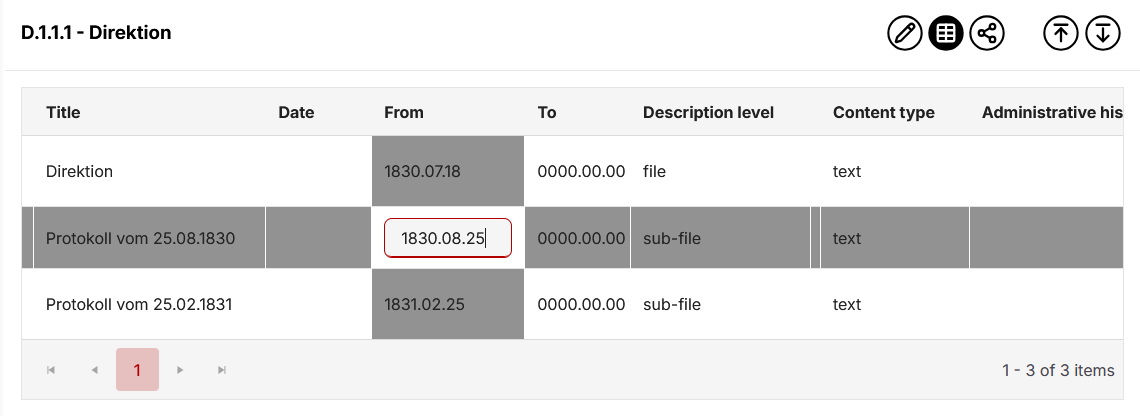
Confirm the change with Enter/Return or by clicking into another cell; press Escape (Esc) to discard the current changes.
Confirming the change accepts it, but does not yet apply or save it. Instead, further values can be adjusted.
Once you're satisfied with all your changes, you save all of them using "Save changes". Clicking "Reset" discards all changes (without an additional prompt) and keeps all records in their last saved state.
Work more efficiently with the keyboard
You can jump to any cell in the Grid with the mouse, but the Grid is designed for efficient work using the keyboard.
If a cell is editable, then:
- Tab moves to the next cell to the right in the same row.
- Shift + Tab moves to the previous cell to the left.
- Enter/Return moves to the cell below in the same column.
In all cases, the changes you've made in the current cell are also confirmed at the same time.
If you're not editing a cell, you can move between cells using the arrow keys. The currently focused row and column are visually highlighted, and pressing Enter makes the cell highlighted in that crosshair editable.
The Grid is evolving
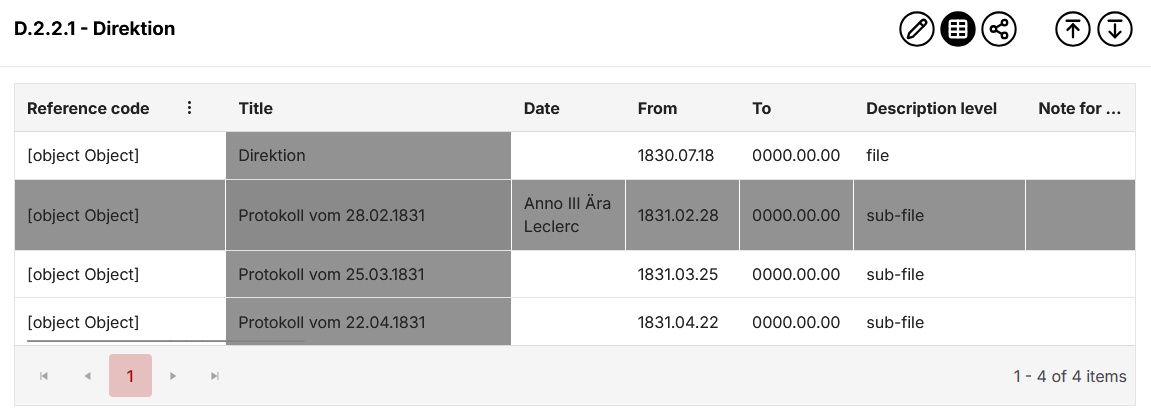
Not all fields are equally easy to edit in the Grid today. Some fields whose values must be stored in a more complex way are displayed but cannot be changed. The same applies to fields that are marked as read-only and cannot be modified.
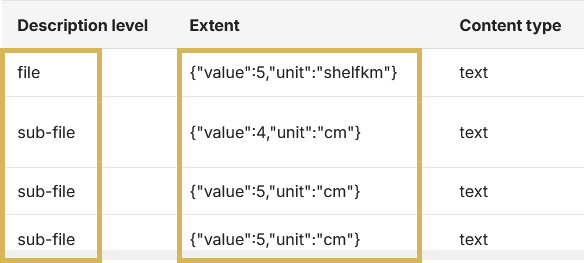
Because this form of editing entries is new, we are expanding the Grid step by step. We also plan to use this powerful view as a basis for more advanced bulk updates.
The Grid is one of the more powerful elements of our app. It probably also requires some practice to operate. Our goal remains to keep the Grid safe to operate and easy to understand, as we continue to extend it for additional use cases.